
GuangYaPan
GuangYaPan
GuangYaPan uses a two-step SMS login flow. Save once to send the SMS code, then save again with the SMS code to finish login.
Add Method
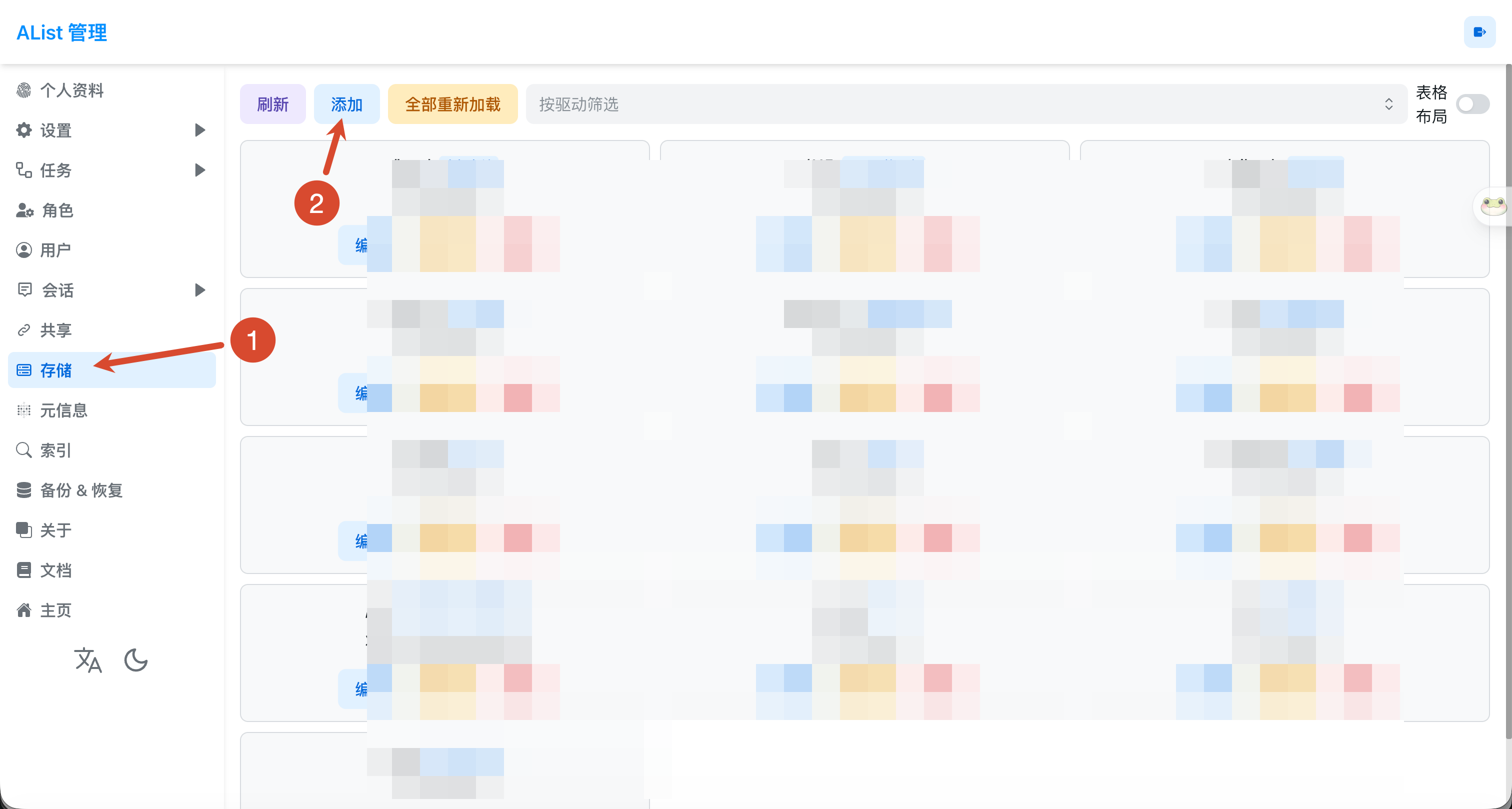
- Open the AList admin panel, go to
Storage, and clickAdd.
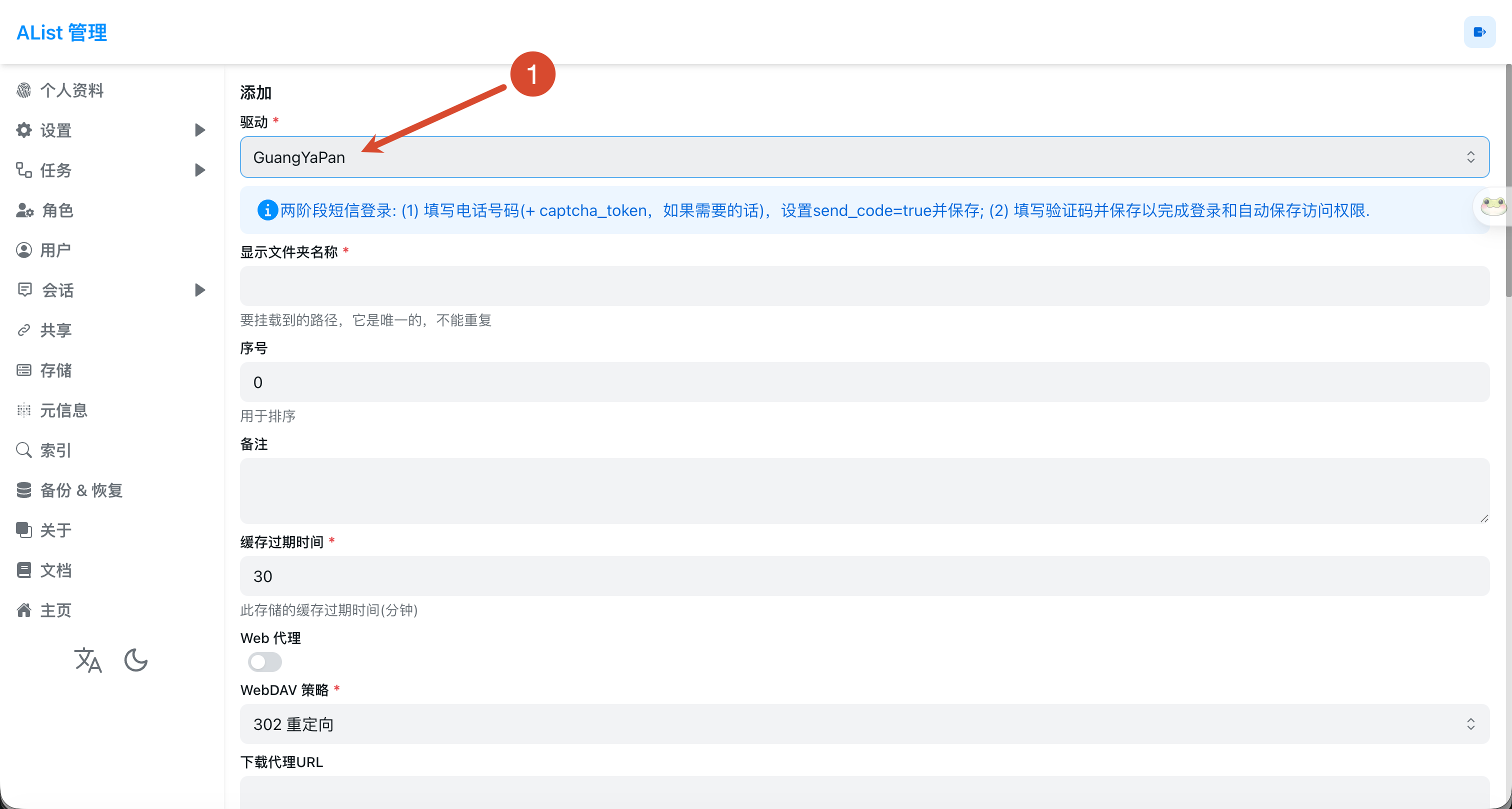
- Select
GuangYaPanas theDriver, then fill in the mount path inMount path.
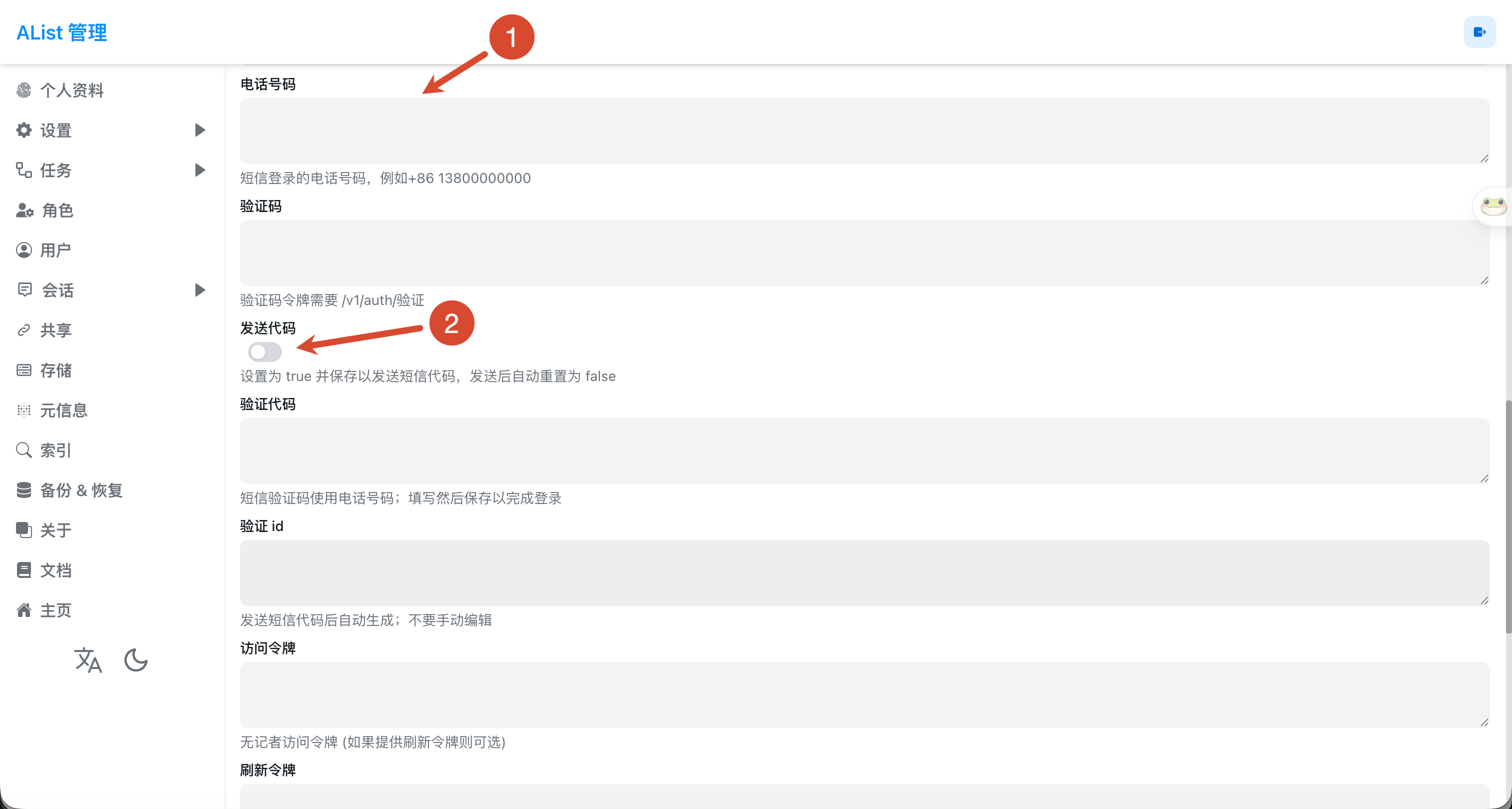
Fill in
Phone number, for example:+86 13800000000.If the page requires
captcha_token, complete the captcha verification first, then fill inCaptcha.Enable
Send code, then clickAddorSave. AList will send an SMS code to the phone number and automatically generateVerify id.
- Return to the storage list. If the status shows
SMS sent successfully. Please fill verify_code and save to complete login., clickEditfor this storage.
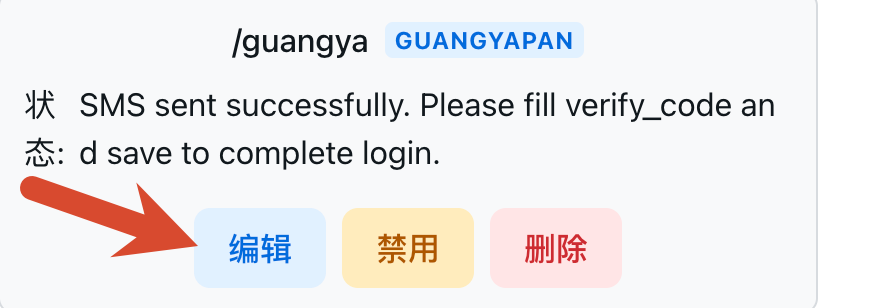
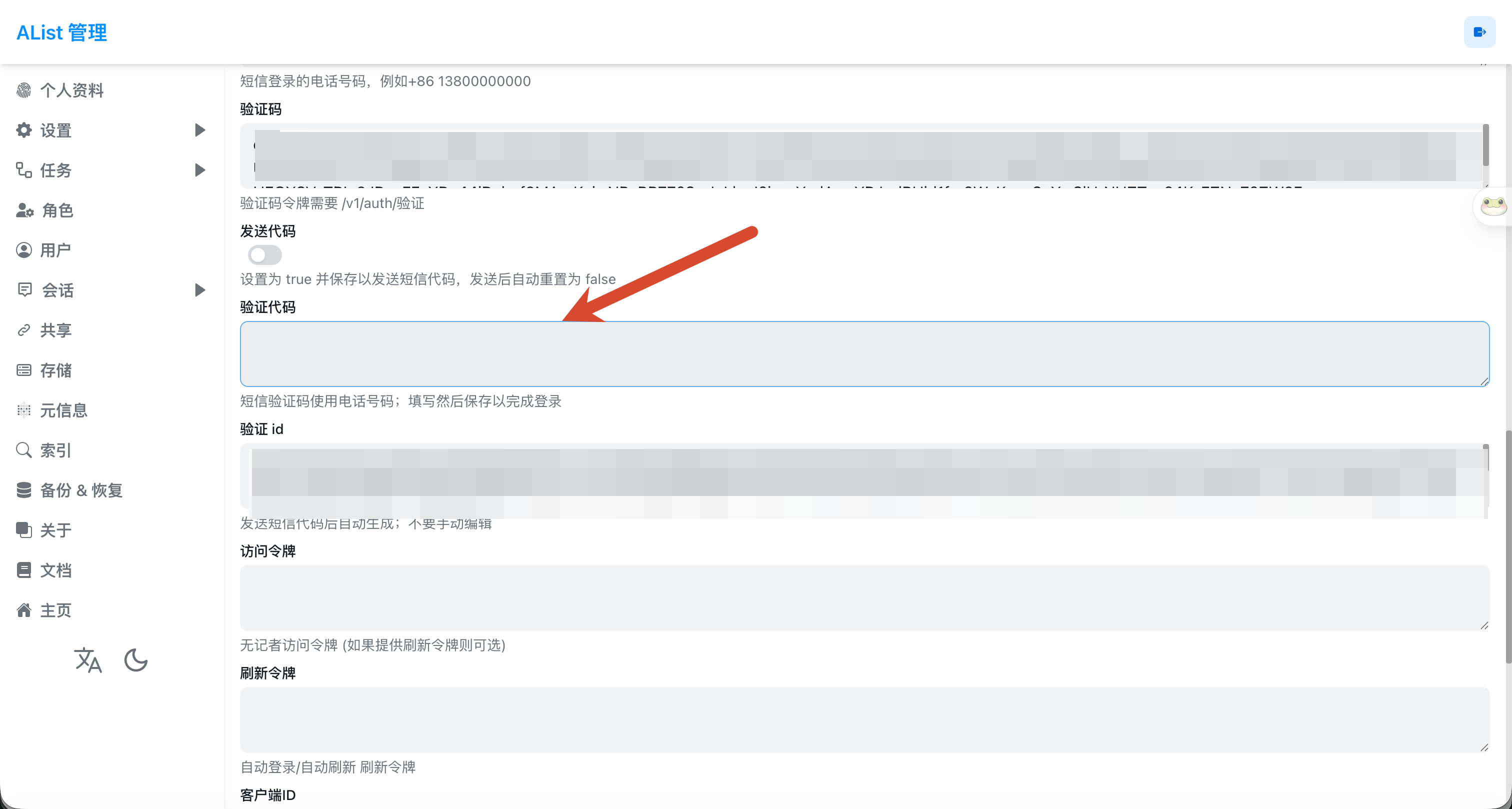
- Fill the received SMS code into
Verify code, then save again. After the save succeeds, AList completes login and stores the access token automatically.
Warning
Verify id is generated automatically after the SMS code is sent. Do not edit it manually.
Access token and Refresh token are generated and saved automatically after login. If the token expires or account status changes, repeat the SMS login flow above.
Config
Phone number
Phone number used for SMS login. For mainland China numbers, use the +86 country code format.
Captcha
Captcha or captcha_token. Fill it only when the page requires it.
Send code
Set it to true and save to send the SMS code. It is reset to false automatically after the SMS code is sent.
Verify code
SMS code received on the phone. After sending the SMS code, edit the storage, fill this field, and save again to finish login.
Verify id
Generated automatically after sending the SMS code. Do not edit it manually.
Access token / Refresh token
Generated and saved automatically after login. Usually no manual input is needed.