
MediaFire
MediaFire
Tips
Supported version:
- MediaFire driver and automatic session renewal:
>= v3.53.0

- MediaFire does not provide
API_KEYnorAPPsupport anymore, so setting user session values is a must.
Configure storage
Go http://localhost:5244/@manage/storages or your custom AList web
Press "Add" button to bind another storage
Choose "MediaFire"
Set Mount Path, i.e. /MediaFire/MyCloud
Go https://mediafire.com in another browser tab
Open Dev Tools by pressing F12 or (Ctrl / Command) + Shift + I
Press "Network" tab (upper bar)
Press F5 to refresh and start intercepting all requests
Copy the
Session Token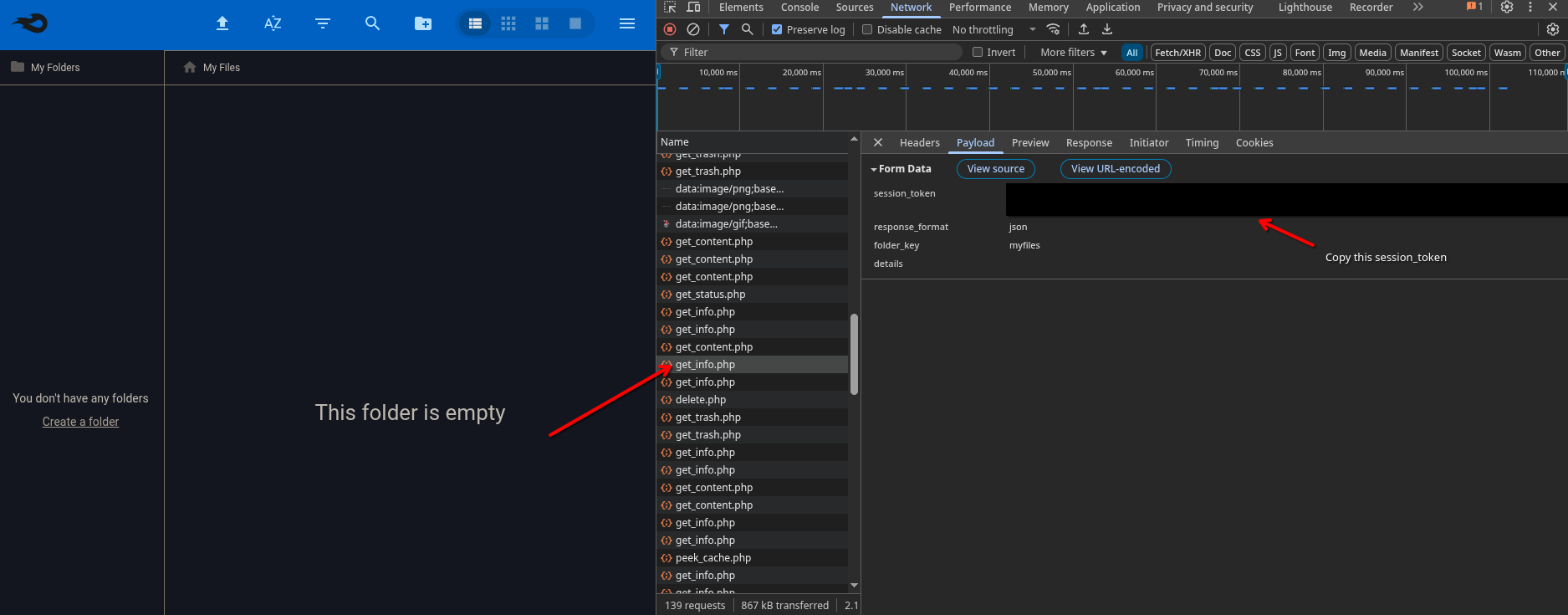
Switch tab to AList Admin and Paste it into Session Token field
Switch tab to MediaFire and Copy the
Cookie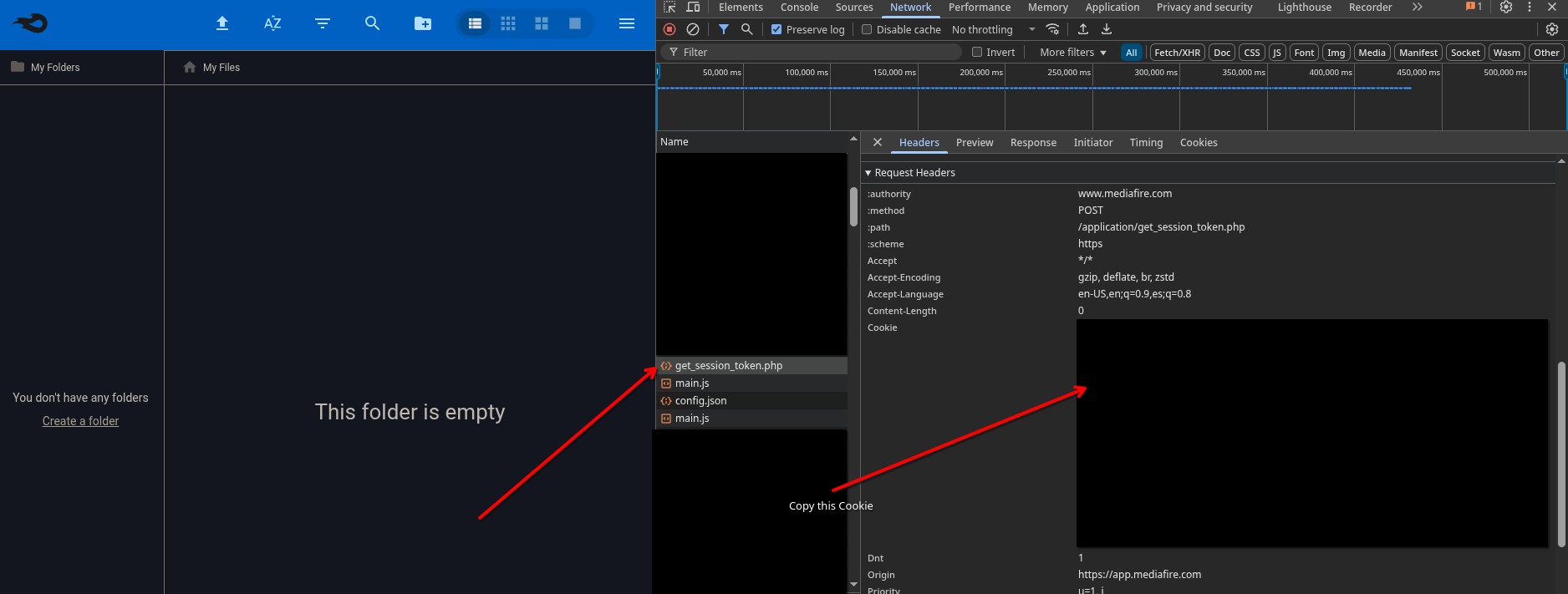
Switch back tab to AList Admin and Paste it into Cookie field
Verify Session Token and Cookie are set
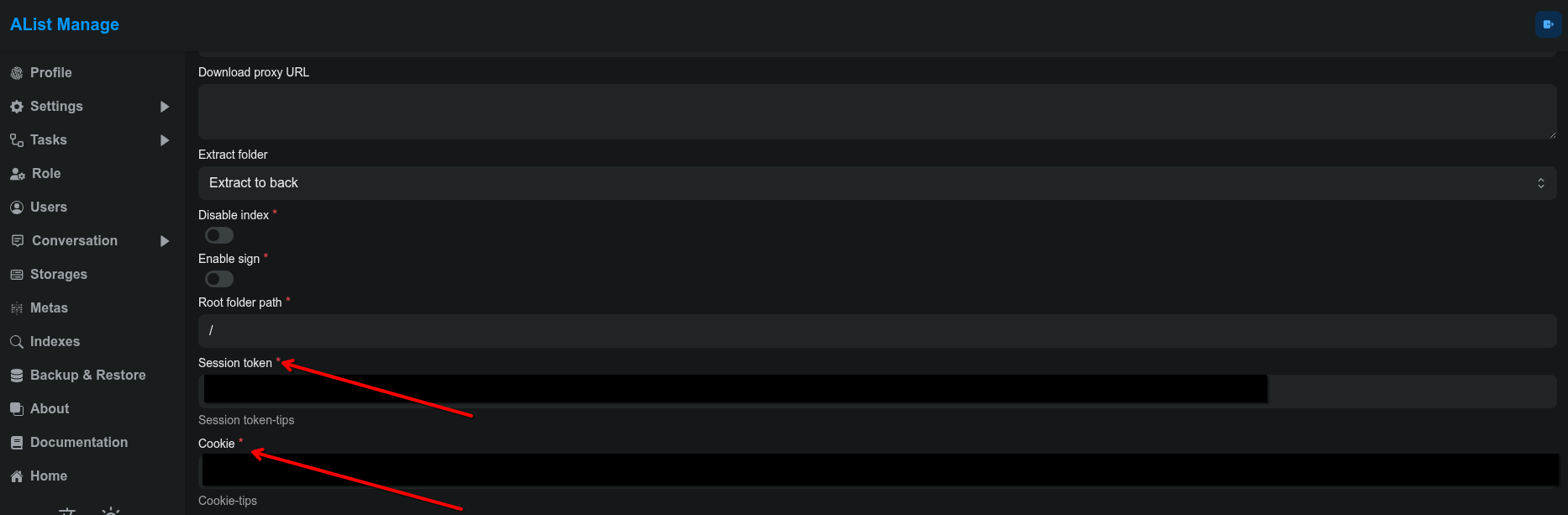
- Press "Add" button again to confirm your MediaFire storage. Done!
Root folder ID
Default is "/", because this driver roots to "myfiles", and then manages directories to folderID like "xxxyyyzzz123".
- Custom folder root is currently not supported since MediaFire dir structure is based in IDs, not in sequential navigation i.e. /myfiles/Photos/Christmas/
Features
List, Link, MakeDir, Move, Rename, Copy, Remove, Put, PutResult
Session token auto-renewal while the storage stays active
Upload is chunked, resumable, and supports recovery. Very useful for big files.
Tips
root folder ID,root folder Pathwill be set automaticallyMediaFire sessions are short-lived. AList renews the session token in the background every few minutes while the storage stays online, so long-running instances usually keep working without manual refresh.
If AList is restarted, sleeps for a long time, or MediaFire revokes the login, you may still need to capture a fresh
Session TokenandCookie.Chunk sizecontrols the per-chunk upload size used by the MediaFire uploader. Larger values reduce the number of requests, but unstable networks may benefit from smaller chunks.